Matter theme: user guide
Set up Matter in the Shopify theme editor, from your first install to publishing your store.
Matter is a Shopify theme by Wecraft. Set it up in the Shopify theme editor without editing code.
One theme, five styles
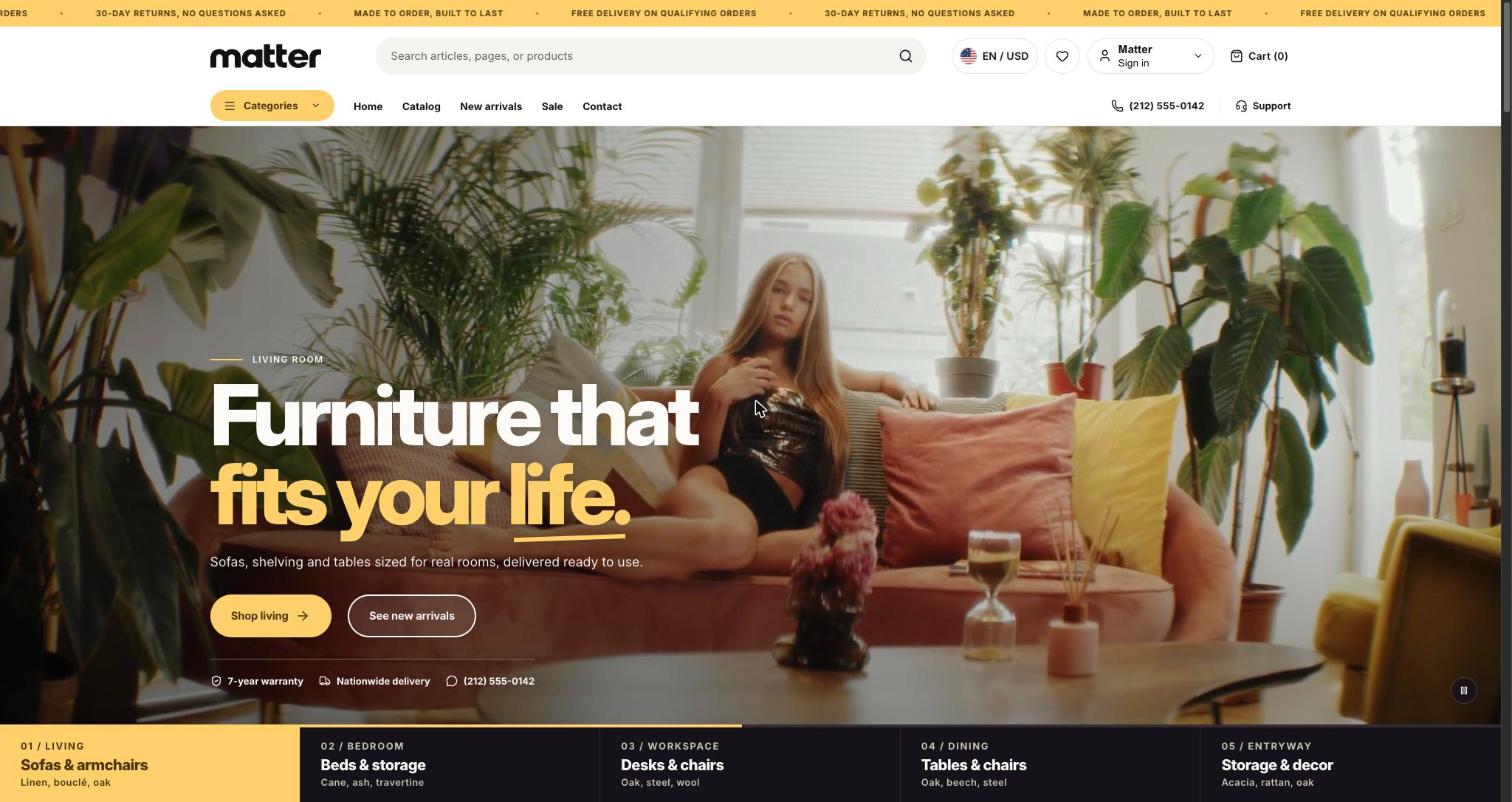 MatterHome and furniture
 MomoPets
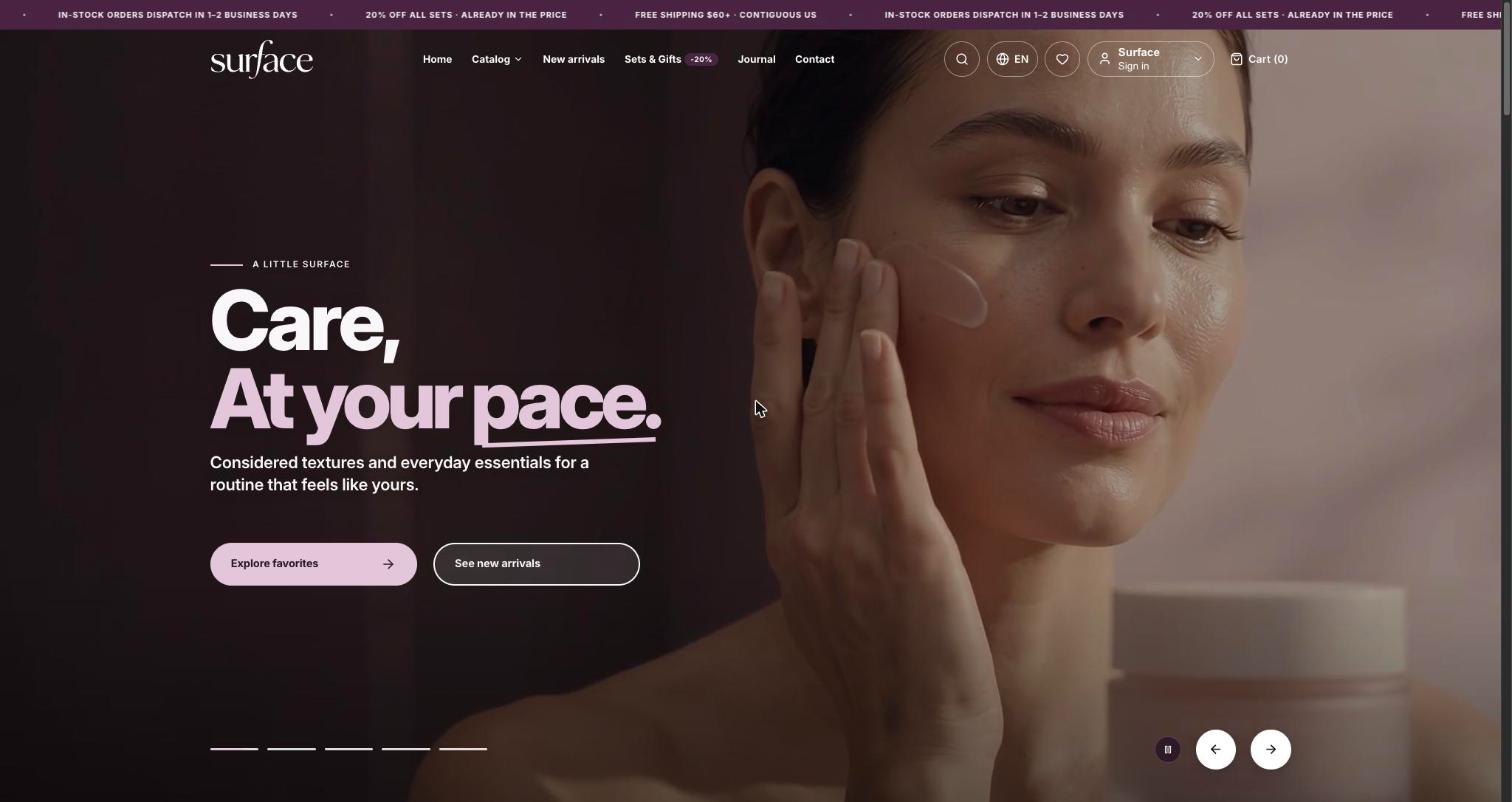 SurfaceBeauty
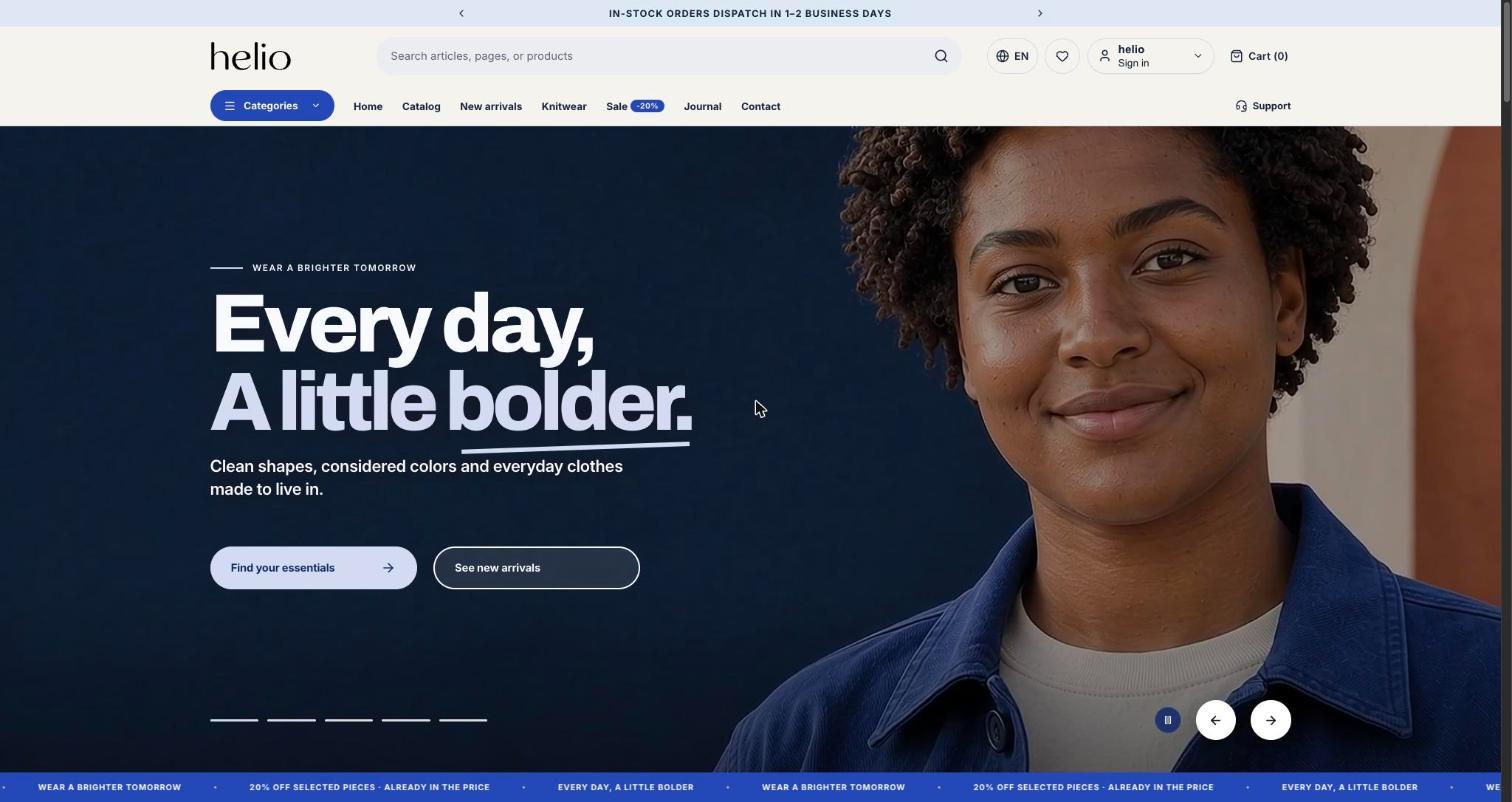 HelioClothing
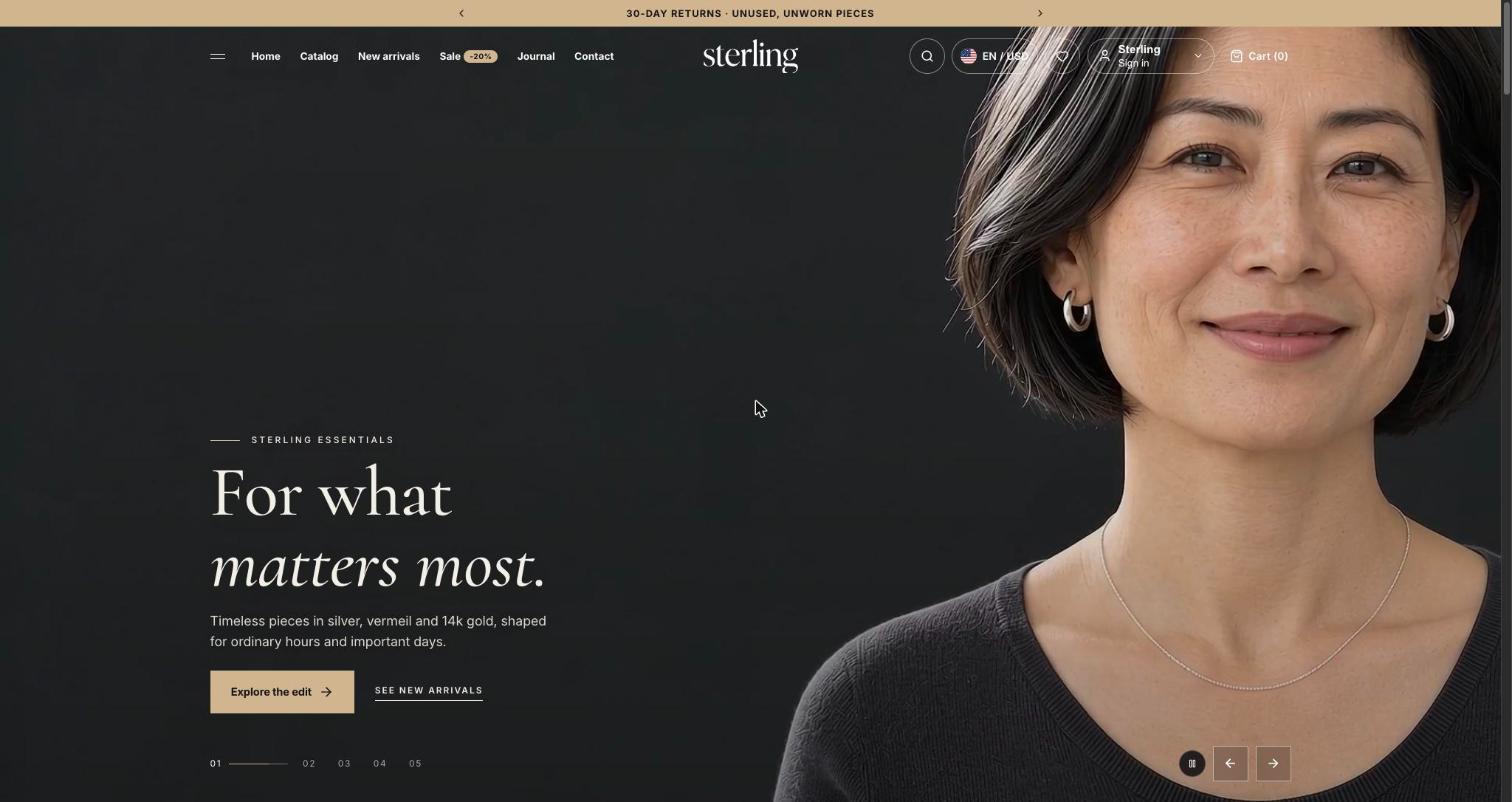 SterlingJewelry
Getting started
Install Matter, choose a preset, and set up your logo, colors, fonts, menus, and contact details.
Read guideDemo content
Optional: load the demo store's products into your own store so your pages look like the preset you chose.
Read guideHomepage
Build your homepage with the hero slider, collections, campaign banners, lookbook, and other sections.
Read guideHeader and navigation
Configure header layouts, menus, search, account links, announcements, and the footer.
Read guideProduct page
Set up product galleries, buy box blocks, metafields, product cards, prices, badges, and stock.
Read guideCollection and search pages
Configure filters, sorting, product grids, collection banners, and predictive search.
Read guideCart
Choose a cart drawer or page and set up shipping progress, trust items, recommendations, and gift wrapping.
Read guidePopups
Configure welcome and exit-intent popups, content, timing, frequency, and test mode.
Read guideColors
Choose color schemes, accents, readable text, status colors, and badge colors for your store.
Read guideTranslations
Add languages, translate your content, edit theme wording, and configure right-to-left layouts.
Read guideWishlist (saved items)
Create your saved-items page and choose where shoppers can save products with the heart button.
Read guideFAQ and troubleshooting
Find answers to common questions about setup, navigation, products, the cart, popups, and updates.
Read guideHow to read these guides
- Online Store
- then Themes
- then Customize
- Open Customize to enter the theme editor.
- Open Theme settings with the paintbrush or cog icon for changes across the store.
- Click a section in the left-hand list for changes to that section. Blocks are items inside it, such as one hero slide.
Setting names appear in bold, as they do in the editor. A path shows which panel and setting to open:
- Theme settings
- then Cart
- then Cart type
Guides
Start with Getting started, then use the guide cards above to open any part of your store. Each guide starts with a short checklist and keeps settings beside the matching screenshot.
Demo content
Optional. Product files for all five presets, with import steps, are in Demo content. The theme works without them.
Support
Contact Wecraft support. Include your store address and a link to the page with the problem.