Translations
Add languages, translate your content, edit theme wording, and configure right-to-left layouts.
There are two kinds of text in your store, and they are translated in different places:
| Kind of text | Examples | Where it is translated |
|---|---|---|
| Theme wording | "Add to cart", "Sold out", "Filter", "Your cart", form labels, error messages | Comes with the theme. You can change it. |
| Your content | Product titles and descriptions, collection names, menus, pages, and the text you type into sections in the theme editor | You translate it, with Shopify's Translate & Adapt app or another translation app. |
Languages included with the theme
Matter includes its theme wording in seven languages:
- English (default)
- German
- Spanish
- French
- Italian
- Romanian
- Turkish
When a shopper views your store in one of these languages, buttons and labels are shown in that language automatically.
The theme editor itself (the names of settings) is in English.
Add a language to your store
- In your Shopify admin, go to Settings → Languages.
- Click Add language, choose the language and add it.
- Publish the language when your translations are ready.
- If you sell in several countries, assign languages to markets in Settings → Markets.
When your store has more than one published language, the language selector appears in the header and footer. See Header and navigation.
Translate your content
Install Shopify's free Translate & Adapt app.
- Open the app and choose the language.
- Translate your products, collections, menus and pages.
- Choose the theme content to translate section text, such as hero headlines, announcements, and popups.
- Alternatively, open the theme editor, switch language at the top, and enter translations in the section settings.
Change the theme's wording
You can change any built-in wording, for example "Add to cart" to "Add to bag".
- In your Shopify admin, go to Online Store → Themes.
- Next to Matter, click the … button and choose Edit default theme content.
- Use the search field to find the text, type your version and click Save.
To change the wording in another language, use the language selector at the top of that screen.
If your store uses a language that is not in the list above, the theme wording is shown in English until you add translations here, or through Translate & Adapt.
Right-to-left languages
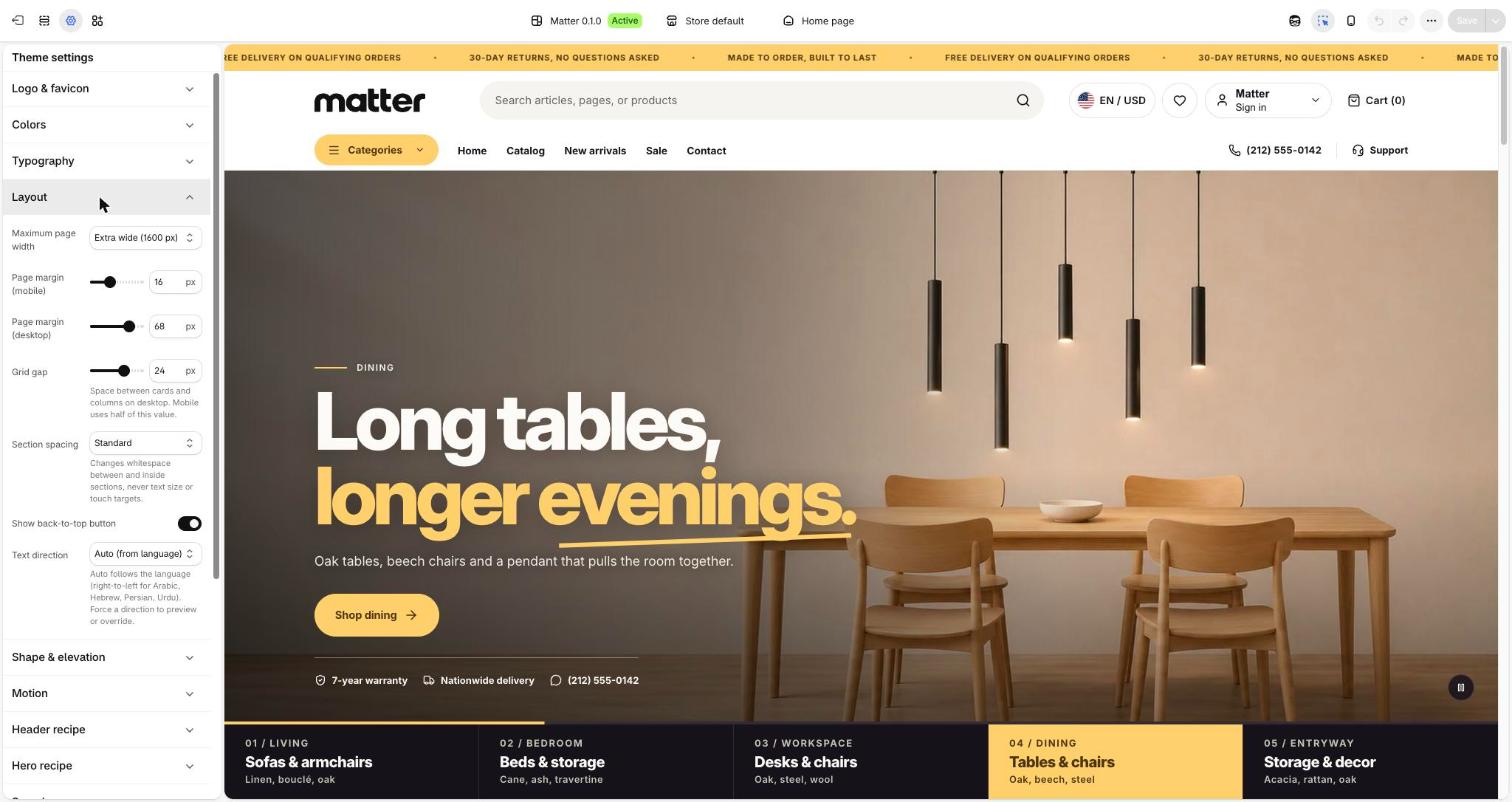
Matter supports right-to-left languages.
- Theme settings
- then Layout
- then Text direction
| Setting | What it does | Default or options |
|---|---|---|
| Text direction | Auto uses right-to-left for Arabic, Hebrew, Persian, and Urdu. Fixed directions apply to every language for previews or overrides. | Auto (from language) (default); Left to right; Right to left |
Currencies and countries
Prices are shown in the shopper's local currency when you sell to more than one country or region through Settings → Markets. The country and currency selector in the header and footer appears automatically in that case.
Dates and countdowns
Countdown end dates (announcement bar, campaign banner, product page) are entered as 2026-12-31 23:59 and are counted in each shopper's local time.